Everything you need to set up and use MyCareRoster on iPhone and iPad.
For MyCareRoster 1.0.
1. Getting started
The sample family
The first time you open MyCareRoster, it shows a sample family: June, Kate, and Isla. They're fictional, and they show how everything works before you add anyone of your own. Explore as much as you like. Nothing about them is saved or synced, their details can't be changed, and their phone numbers and email addresses don't call or email anyone. Their private profiles still ask for Face ID, Touch ID, or your passcode, so you can see how that works too.
When you're ready, tap Turn Off Sample Data on the Sample Family card at the top of the roster. You can bring the sample back at any time from Settings, with Explore Sample Family. Your own roster isn't changed, and it returns when you turn the sample off again.
Already using MyCareRoster on another device? If your roster is waiting in iCloud, the card says Your roster is in iCloud. Tap Show My Roster.
Connect your Medical contacts
Your providers' names, phone numbers, and email addresses come from the Contacts app, from a contacts list named Medical. That way, there's one place to keep them current.
Tap Allow Contacts Access, then allow access when iOS asks. MyCareRoster changes Contacts only when you ask it to create, add, or edit a provider.
If you don't have a Medical list yet, tap Create Medical List. MyCareRoster creates an empty list named Medical in Contacts.
If you turned Contacts access off, MyCareRoster shows Contacts Access Is Off. Tap Open Settings and allow access for MyCareRoster. If you have more than one list named Medical, keep only one, then refresh MyCareRoster.
2. Finding your way around
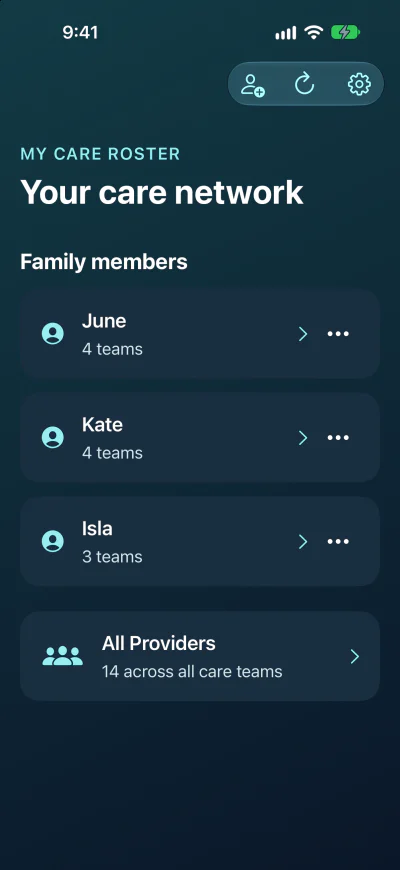
The roster, titled Your care network, is home. It lists your family members and, once providers are in their teams, All Providers: everyone in every care team, in one alphabetical list.
The buttons at the top of the roster are Add Family Member, Refresh, which reads your Medical contacts again, and Settings.
The roster on iPhone
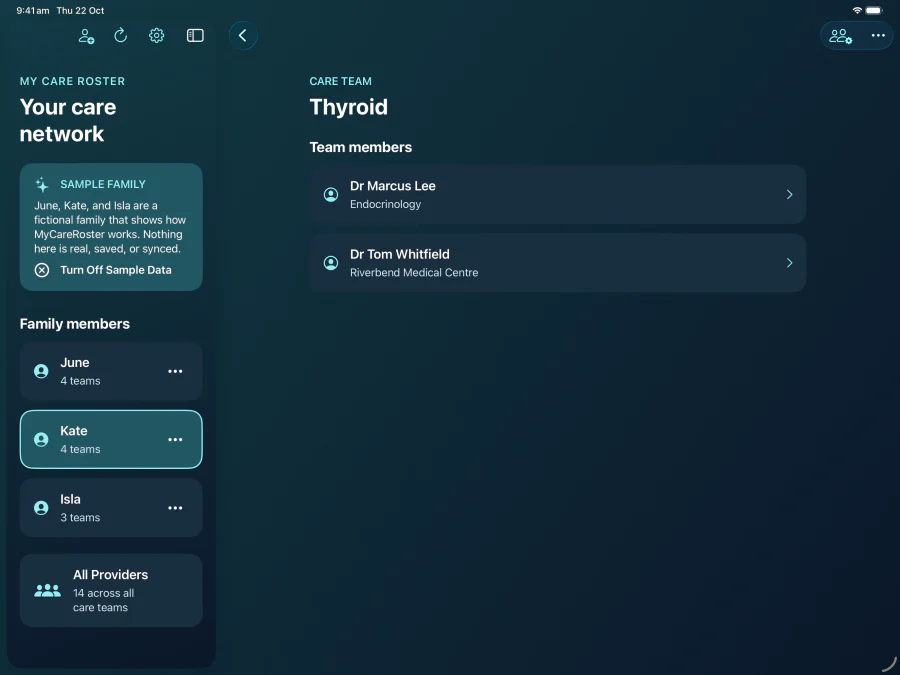
On iPhone, tap a family member to open their screen, and tap the back button to return. On iPad, and on the larger display of iPhone Duo, the roster stays beside whatever you open. The selected family member is highlighted, and you can hide the roster with the sidebar button.
On iPad, the roster stays in view
3. Family members
Add everyone whose care you help with, including yourself.
Add: on the roster, tap Add Family Member and enter a name, such as Alex or Mum.
Rename or delete: tap the ••• button beside a family member, or touch and hold their name, then choose Rename or Delete. The same options are in the ••• menu on their own screen.
Deleting a family member removes their teams from MyCareRoster. Providers and their Contacts cards are not deleted.
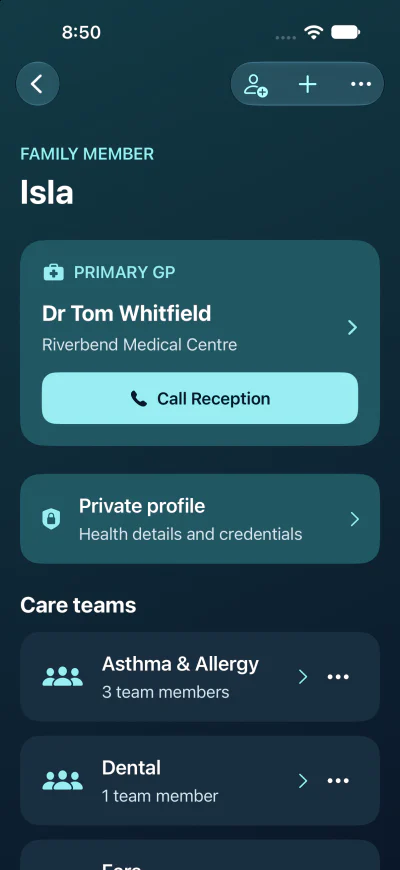
A family member's screen shows, from the top:
their primary GP, with a button to call the practice (see Primary GP)
their care teams, with the number of team members in each
The buttons at the top of their screen are Add Provider, New Team, and •••.
A family member's screen
4. Adding providers
Providers are the contacts in your Medical list: GPs, specialists, clinics, therapists, pharmacies, or anyone else involved in care. Add them from a family member's screen.
Open the family member and tap Add Provider.
Under Medical contacts, tap a provider to add them to this family member's roster.
A provider added this way goes into a team named Other, which MyCareRoster creates if needed. To put them in the right team, open that team and use Edit Team Members (see Care teams).
Someone who isn't in your Medical list yet
In the Add Provider screen, tap the + button, then choose:
Add Existing Contact to pick one or more people already in Contacts. MyCareRoster adds them to your Medical list and to this family member's roster.
Create Provider Contact to make a new contact in Apple's contact editor. When you save it, it joins your Medical list, and you can then tap it in the list to add it to the roster.
Contacts lists belong to one account, such as iCloud or Gmail. A contact stored in a different account from your Medical list can't join it, and MyCareRoster won't copy or duplicate it. Move or recreate the contact in the same account as the Medical list.
If you've given MyCareRoster limited access to Contacts, it can only add the contacts you've shared with it. To add others, allow full access in the Settings app.
5. Care teams
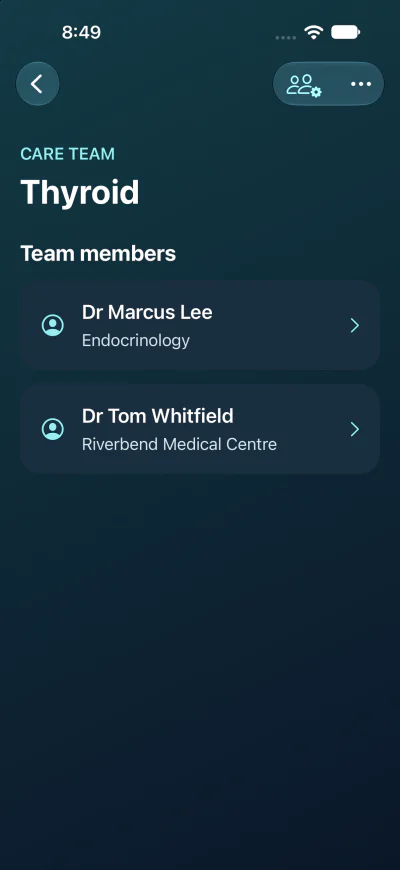
Care teams group the providers involved in one part of someone's care, such as Cardiology, Physio, or Rehabilitation. Each family member has their own teams, and the same provider can belong to as many teams as you like.
Create a team: on the family member's screen, tap New Team and enter a name.
Choose who's in it: open the team and tap Edit Team Members. Turn a provider on to add them, or off to remove them. Changes save as you go; tap Done when you're finished.
Rename or delete a team: tap the ••• button beside the team, or touch and hold it. On the team's own screen, use its ••• menu.
Deleting a team removes it from MyCareRoster. Providers and their Contacts cards are not deleted.
A care team
6. A provider's details
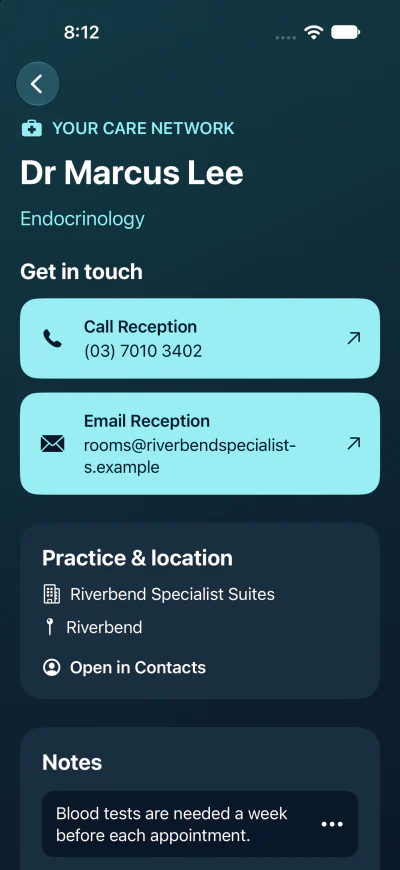
Tap a provider in a team, or in All Providers, to open their details.
Get in touch: one button for each phone number and email address in their contact card, named with the card's labels, such as Call Reception. Tap to call or write an email.
Practice & location: their organization and suburb or city, and Open in Contacts to see or edit their full contact card. Changes you make there show in MyCareRoster when you close the card.
Notes: type in Add a note and tap Save Note. Notes are private to MyCareRoster, and they're never written into Contacts. To change or delete a note, tap its ••• button, or touch and hold it.
Manage provider: set their Role to General Practitioner, Specialist, or Unclassified. For a specialist, enter their specialty and tap Save Specialty. It's shown under their name throughout the app.
A specialist's details
7. Primary GP
Each family member can have one primary GP, shown at the top of their screen with a button to call the practice. The same GP can be primary for several family members.
Make sure the GP is in at least one of the family member's care teams.
Open the GP's details and, under Manage provider, set Role to General Practitioner.
Turn on Primary GP for beside the family member's name. If someone else was their primary GP, the switch shows who it replaces.
To stop using a GP as primary, turn the same switch off. The call button uses the GP's first phone number and its label from Contacts, for example Call Reception.
8. Keeping details up to date
Phone numbers, email addresses, organizations, and locations always come from Contacts. Update a provider's card in Contacts, then tap Refresh on the roster to see the change. MyCareRoster also reads your Medical list whenever it starts up. Your roles, specialties, notes, teams, and primary GP choices stay as they are.
If a provider is removed from your Medical list, or their contact is deleted, MyCareRoster keeps their notes and settings for you to review but hides their contact details and removes them from All Providers. If they're added back to Medical, everything returns after a refresh.
9. Private profiles
Each family member has a private profile for the details forms and clinics ask for. Open it from the family member's screen, then tap Authenticate to View Profile and use Face ID, Touch ID, or your passcode.
What a profile holds
Identity: names, including their legal name and the name they like to be called. The preferred name is their name throughout the app.
Credentials: government identifiers, insurance coverage, and care organization identifiers, such as a hospital record number (MRN).
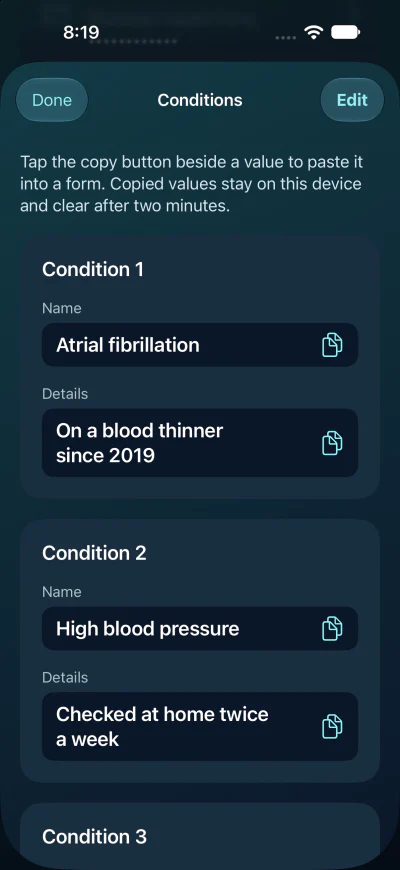
Health: allergies, medicines, conditions, and procedures, each with a name and details.
Every field is optional except the preferred name, which is the family member's name in your roster. Add what you know now and the rest later.
Adding and changing details
Tap a section, such as Medicines. If it's empty, it opens ready to fill in. Otherwise, tap Edit, make your changes, and tap Save.
Copying into a form
Open a section and tap the copy button beside a value, then paste it into a form. Copied values stay on this device (they don't go to your other devices through Universal Clipboard) and clear from the clipboard after two minutes.
Copy one value at a time
Hidden numbers
Credential numbers are hidden until you turn on Show credential values, which asks for Face ID, Touch ID, or your passcode again.
Staying locked
An unlocked profile stays open for five minutes. After that, revealed numbers hide again, and MyCareRoster asks you to authenticate before you open, change, or copy anything more. Anything you're typing in an editor is kept. Numbers also hide as soon as you leave the app, and an open section is covered in the app switcher. It's locked again each time you open it.
Your roster of family members, care teams, roles, notes, and primary GPs syncs automatically between your iPhone and iPad through your private iCloud account. It's encrypted on your device first, with a key kept in iCloud Keychain, so iCloud holds only encrypted data.
To sync, sign in to the same Apple Account on each device, with iCloud and iCloud Keychain (Passwords and Keychain) turned on. Phone numbers, email addresses, and addresses aren't copied between devices: each device reads them from its own Contacts, so your Medical list needs to be on each device too, for example through iCloud Contacts.
Setting up a new device
A new device may need a moment for iCloud Keychain to deliver the encryption key. If your teams haven't appeared, tap Sync saved care teams or Refresh. If a private profile says Waiting for iCloud Keychain, check that iCloud Keychain is on, keep the device online and unlocked for a few minutes, and tap Try Again.
Providers to reconnect
If MyCareRoster can't be sure which contact on this device matches a provider saved on another device, it lists them under Providers to reconnect. Tap one, choose the same person from your Medical contacts, and confirm with Connect Same Provider. Their notes, role, and teams are restored. Nothing is matched until you confirm.
Syncing private profiles
Private profiles don't sync unless you choose to. To open them on your other devices, turn on Sync with iCloud in Settings, under Private Profiles, on each device. They're encrypted on the device before they're stored in iCloud.
When you turn sync off, choose Stop Syncing Only to keep the iCloud copy, or Stop Syncing and Delete from iCloud to remove it. Either way, the profiles stay on this device. Turn sync off on your other devices first, or they'll upload their copy again.
11. Free version and MyCareRoster Unlimited
The free version never expires. It includes:
one family member
two care teams
three providers across those teams (a provider in more than one team counts once)
Private profiles, notes, and encrypted iCloud sync are included free.
MyCareRoster Unlimited removes the limits on family members, care teams, and providers. It's a one-time purchase, not a subscription, and works on all your devices signed in to the same App Store account. When you reach a limit, MyCareRoster tells you which one and offers See MyCareRoster Unlimited. You can also find it in Settings, under Purchases.
To restore your purchase on a new device, sign in with the same App Store account and tap Restore Purchases in Settings or on the MyCareRoster Unlimited screen.
12. Settings
Tap Settings on the roster.
Sample Family:Explore Sample Family or Turn Off Sample Data.
Private Profiles:Sync with iCloud.
Purchases: your MyCareRoster Unlimited status, See MyCareRoster Unlimited, and Restore Purchases.
About: the version, Privacy Policy, Support, Rate MyCareRoster, and Send Feedback, which opens an email to us. Please don't include health details or identifiers.
13. Deleting your information
Deleting MyCareRoster from a device removes what it stored on that device. Copies in iCloud remain until you remove them.
MyCareRoster's Diagnostics section has tools for this. To show it, open Settings and tap the version number seven times. To hide it again, tap the lock icon beside the version.
Delete from iCloud removes the encrypted iCloud copy of your roster, your private profiles, or both. This device keeps its own copy and stops syncing it until you tap Resume iCloud Uploads or hide Diagnostics.
Delete Everything permanently deletes every family member, team, provider setting, note, and private profile from iCloud and this device, along with the encryption keys. Delete MyCareRoster from your other devices first, or they'll upload their copy again.
Both ask for Face ID, Touch ID, or your passcode. Neither changes your contacts, which stay in Contacts.
Diagnostics also has Support Info, which we may ask you to copy into an email if you need help. See Support.
 MyCareRoster